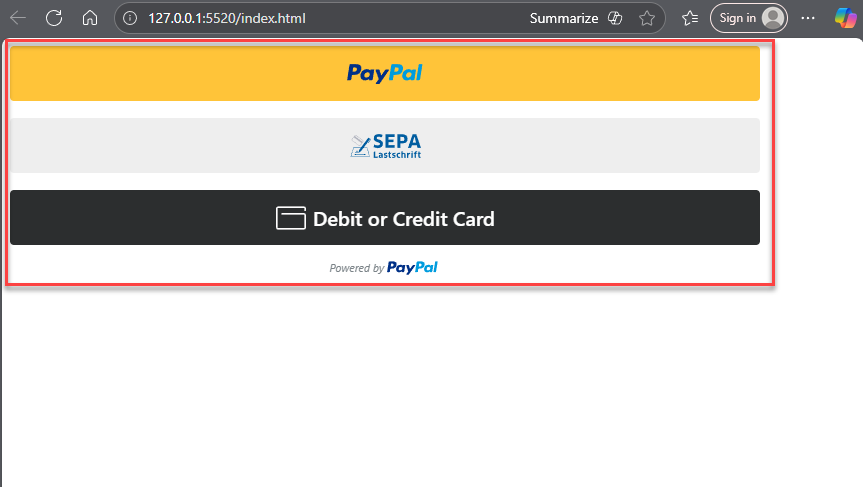
⚡ FreshLimePay Cloud (Recommended)
Step 1: Sign up
Access FreshLimePay Cloud website
Access FreshLimePay Cloud website
Go to FreshLimePay Cloud website 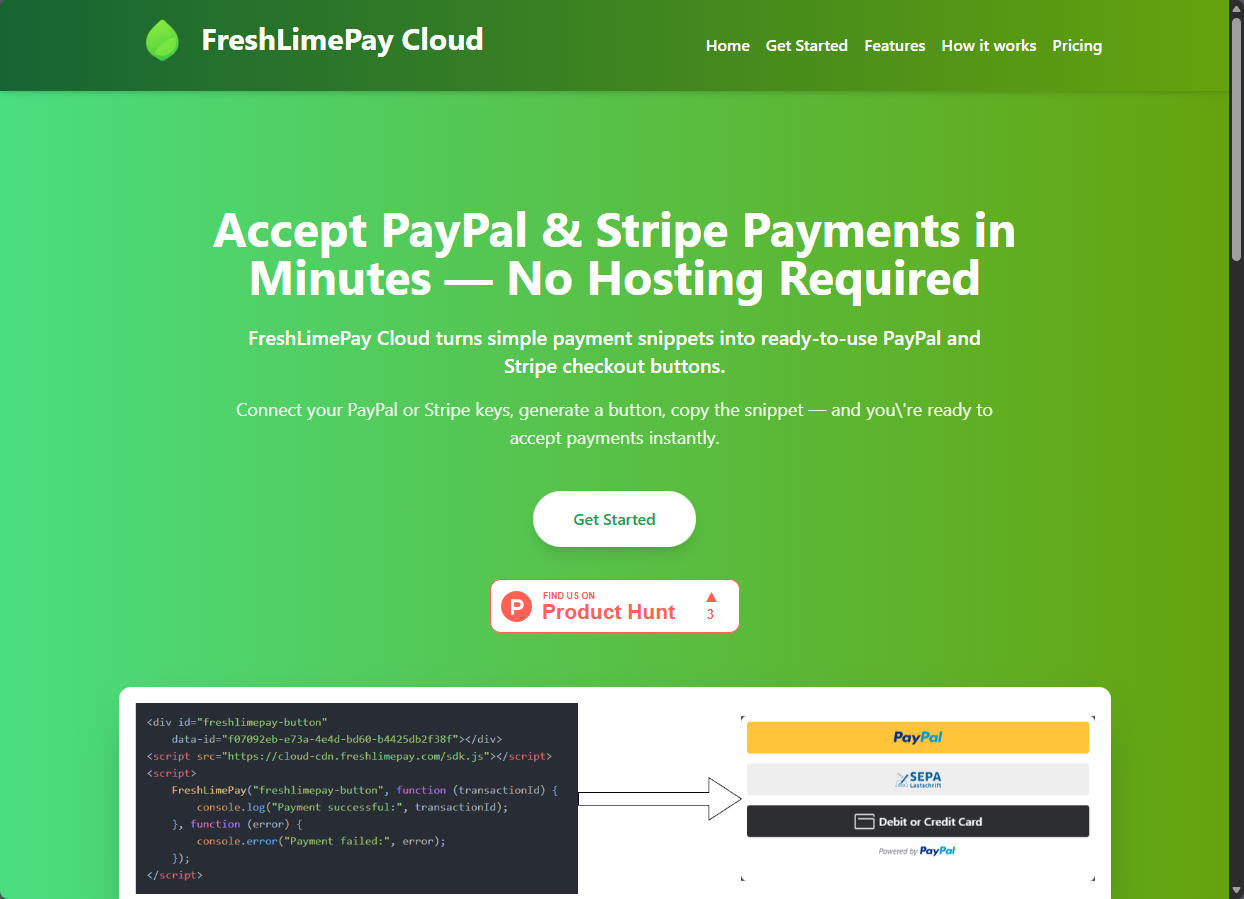
hereor visit this link: FreshLimePay Cloud — Fast PayPal & Stripe Integration for SaaS, Creators & Small BusinessesCreate a FreshLimePay account using Google.
Create a FreshLimePay account using Google.
-
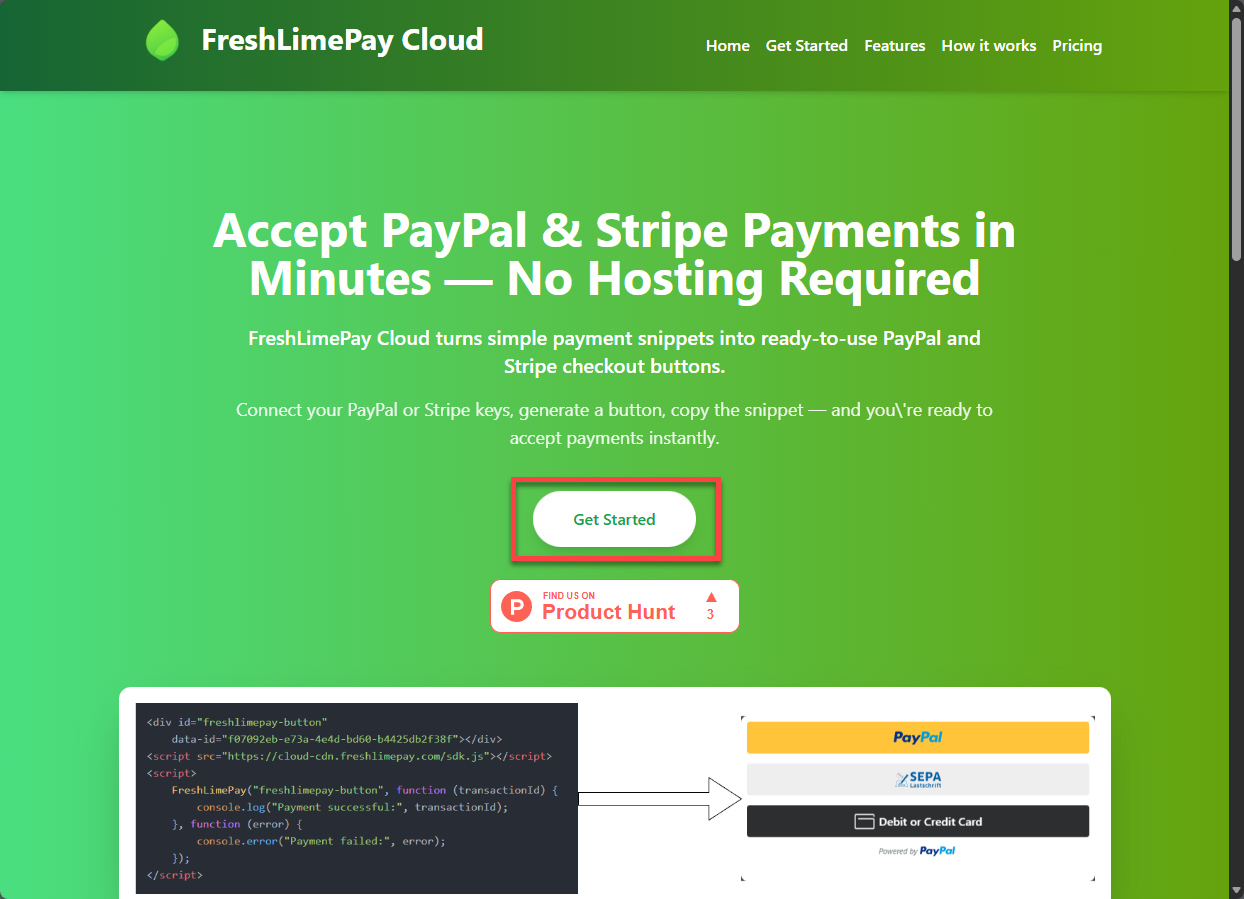
Click “Get Started” button.
-
You will see “Sign up” page with Sign in with Google button like this

-
Click on the “Sign in with Google” button
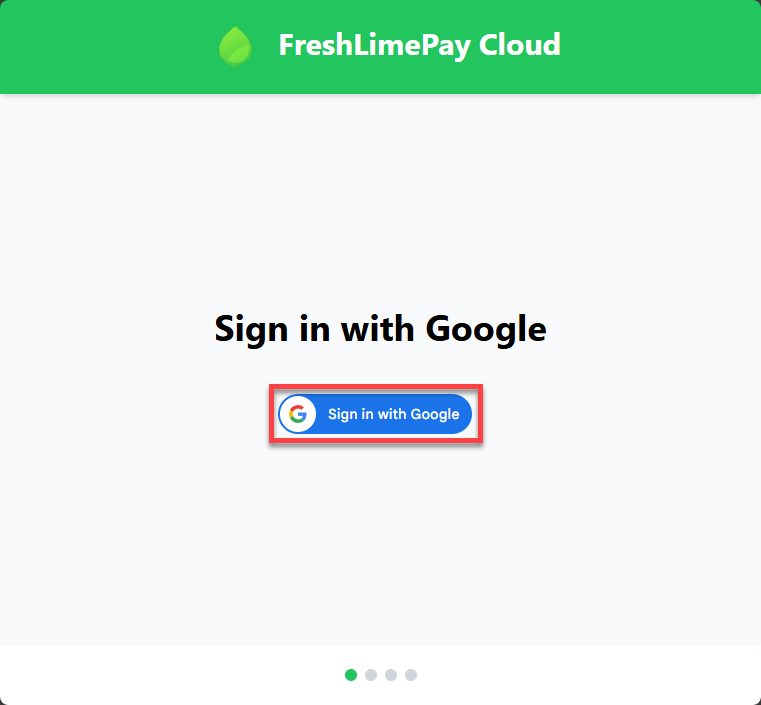
- Follow the instructions to sign in with your Google account.
- Completed.
Step 2: Connect PayPal or Stripe
After login completed, you will see the home page like this: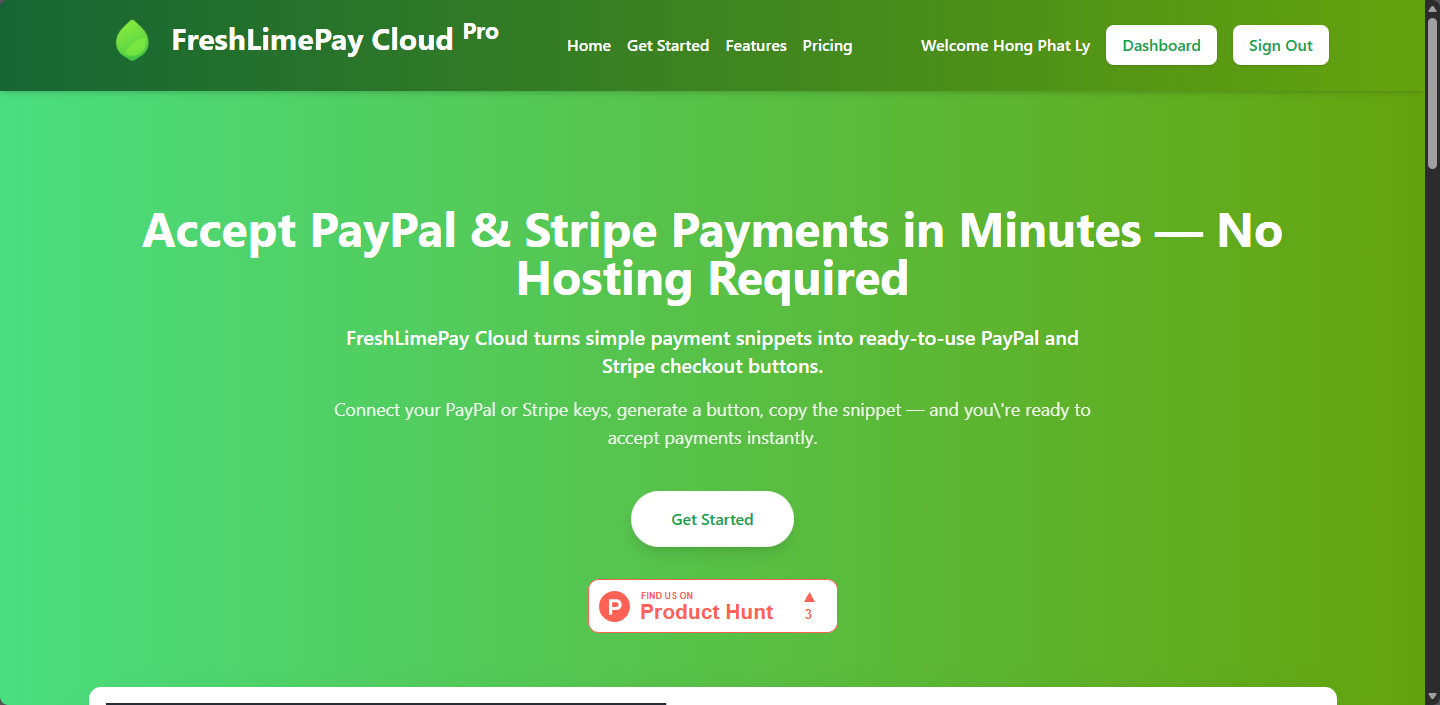
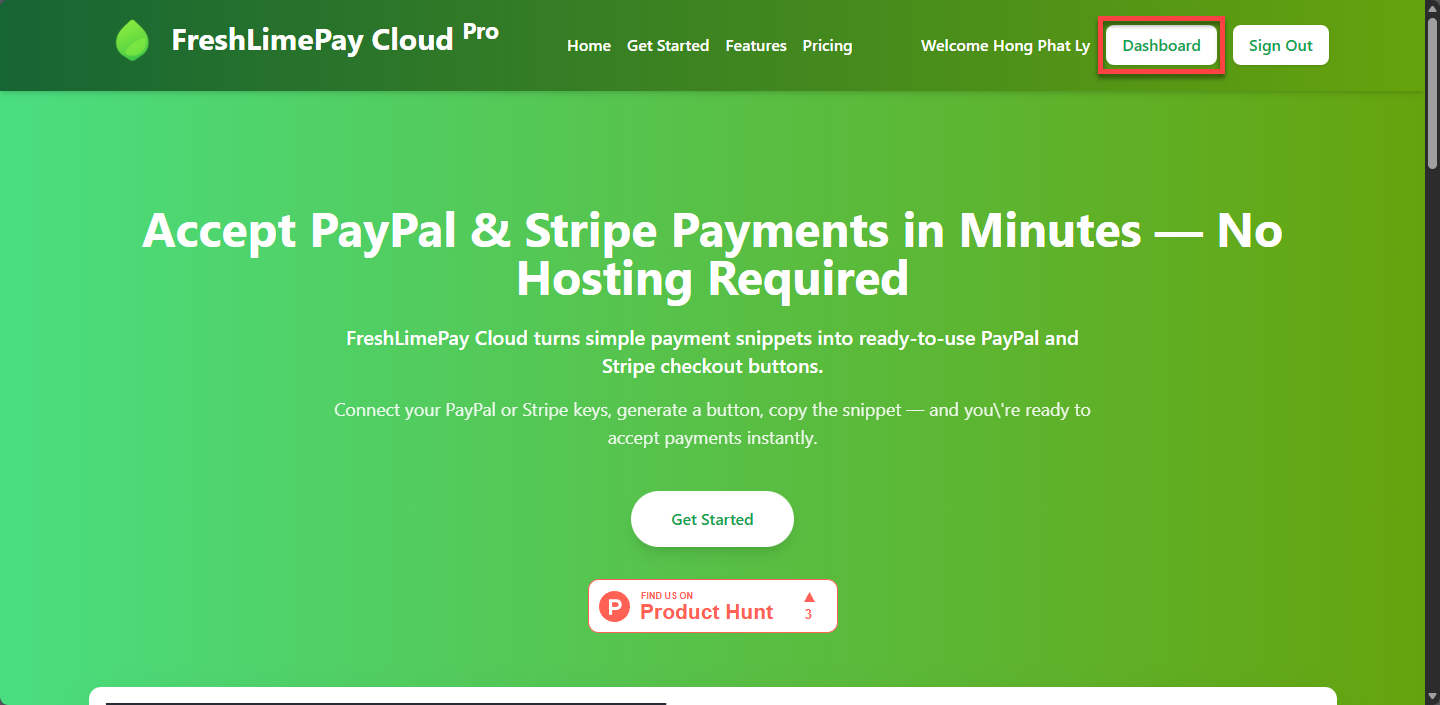
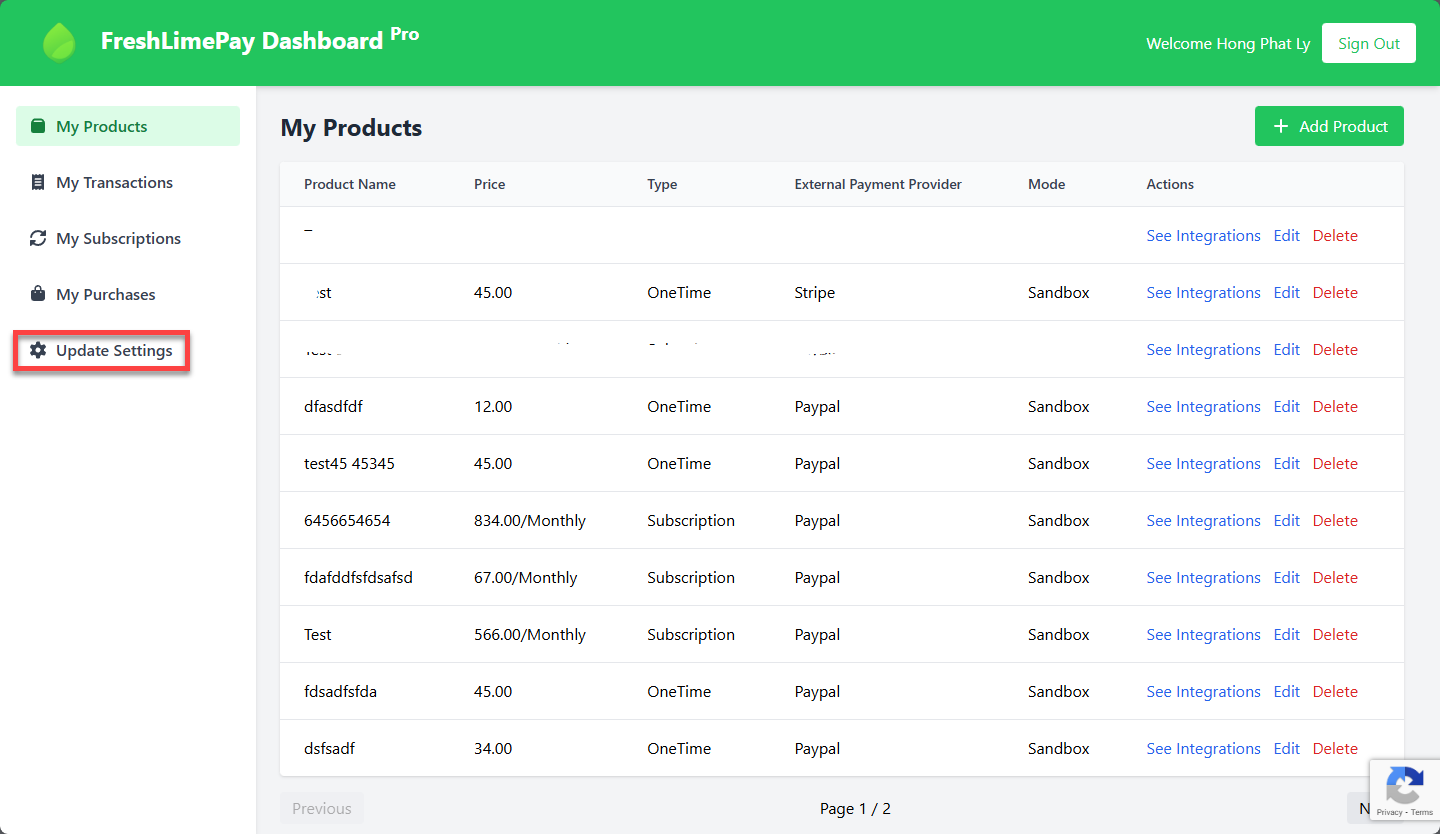
Connect PayPal
Connect PayPal
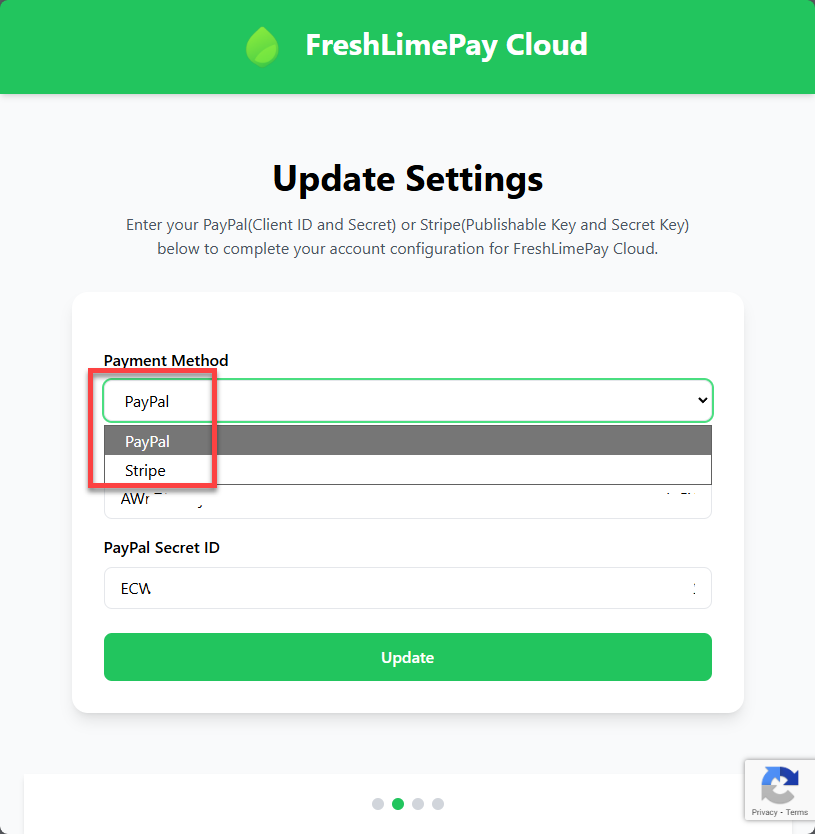
You choose PayPal and update PayPal Client ID and PayPal Secret ID and press Update.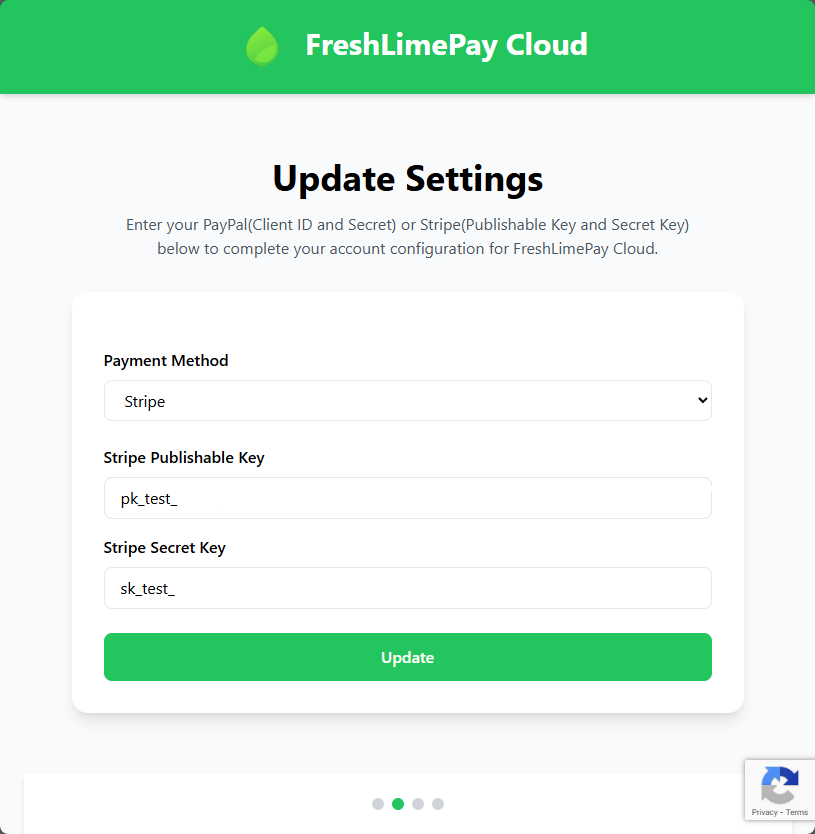
Connect Stripe
Connect Stripe
You choose Stripe and update Stripe Publishable Key and Stripe Secret Key and press Update.
Step 3: Create Payment button
Open New Payment Button page
Open New Payment Button page
-
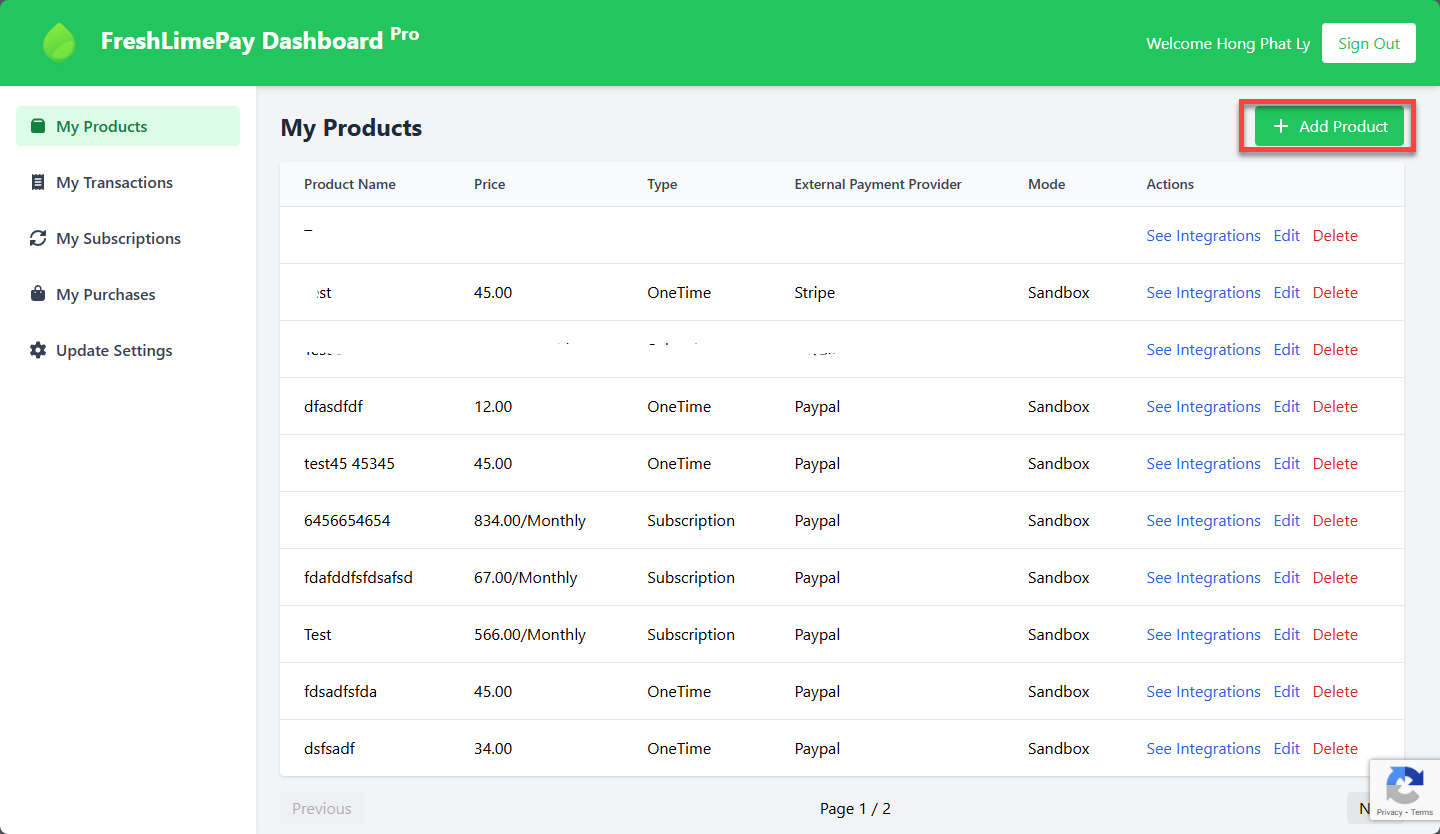
Go the Dashboard page and click on “Add Product” button:
-
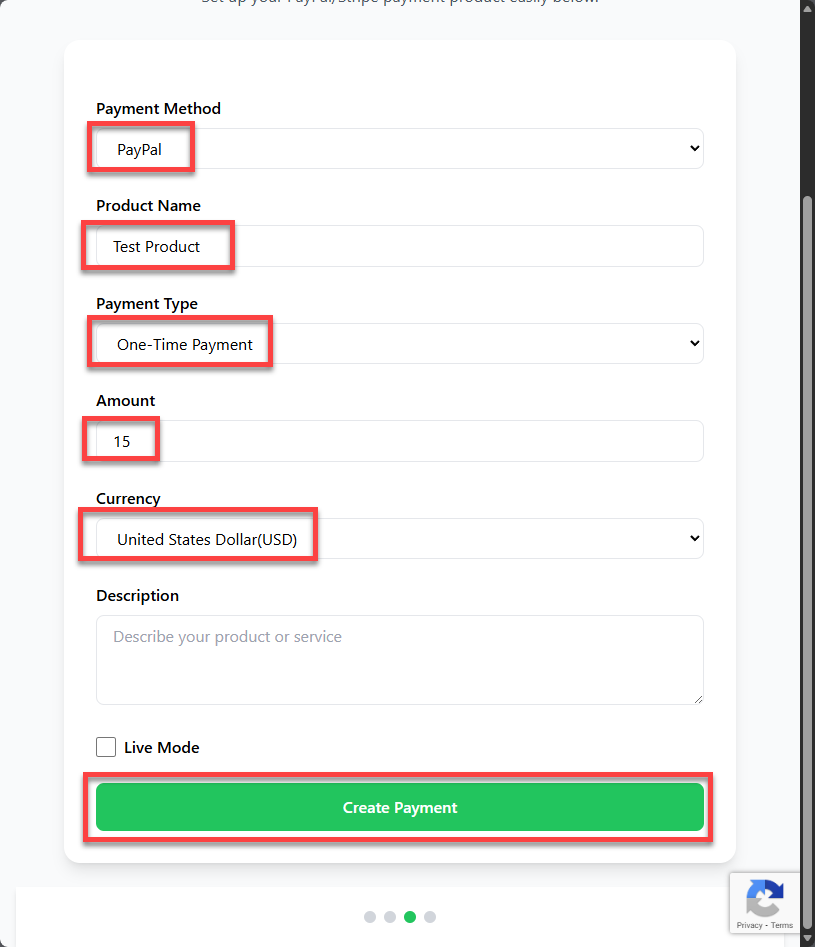
You will see the page like this:
- Completed.
Generate new Payment Button
Generate new Payment Button
-
Enter all required information like this
- Click on “Create Payment” button to generate new payment button.
-
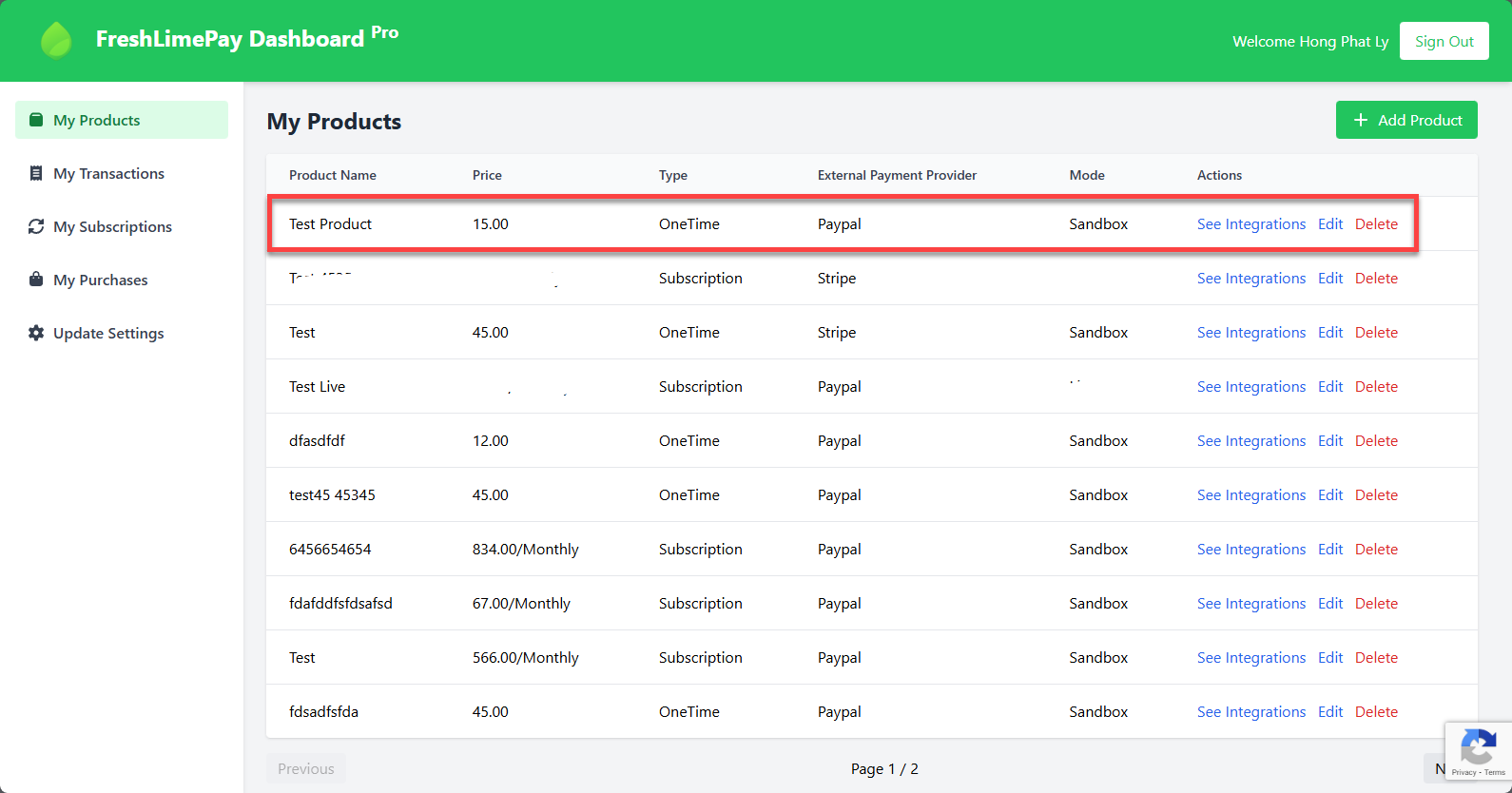
You will see new entry added to the dashboard page like this:
-
Click on the See Intergrations link to see snippets
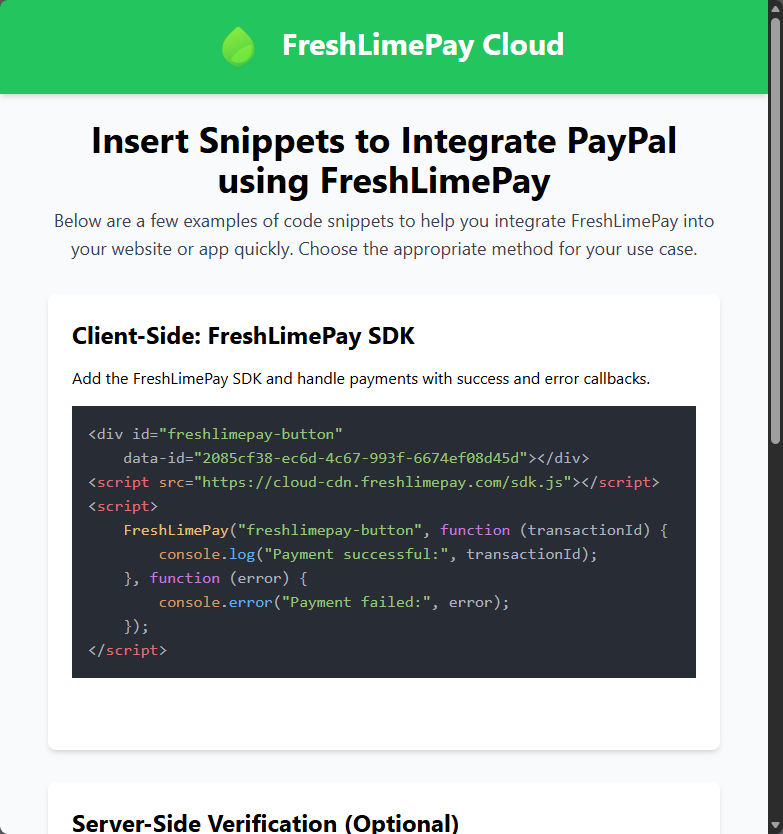
Step 4: Embed the snippet
Create a simple HTML web page and paste the above snippets into it: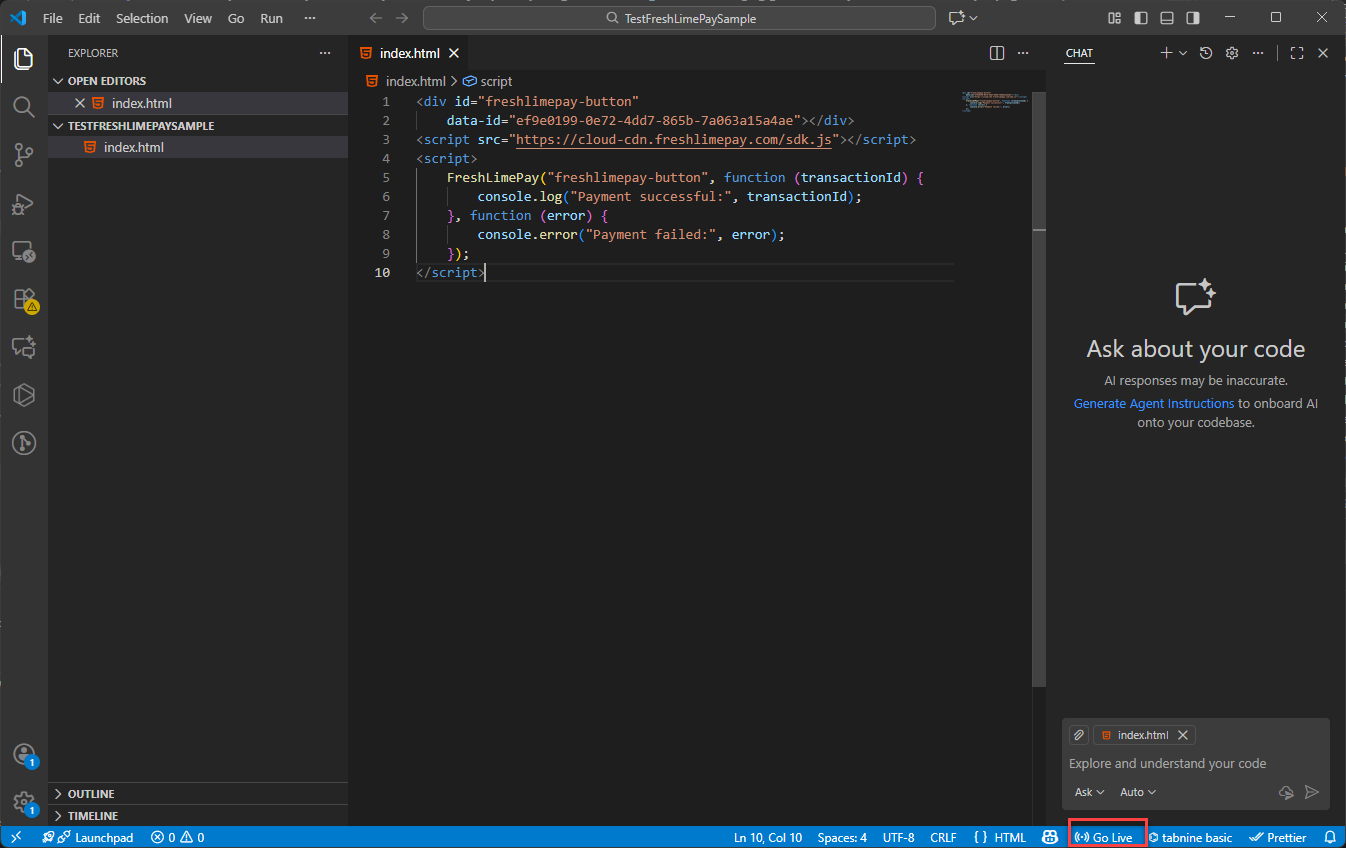
Step 5: Test the payment
Open your page, click the button, and complete a test payment.